Workflow and activities
Let us first explain the concept of an activity. An activity is a piece of work that InfoCare is responsible for being done, it might be a PC that needs repair, a ticket terminal that needs to be installed, an ATM that needs maintenance and so on. Other vendors may call this work order, job, ticket or service calls. In InfoCare we use the term activity.
An activity starts its life by being created in the system, then it follows certain steps until it is completed, i.e. all work related to the activity are completed. This process is called a workflow. The simplest possible workflow consist of two steps; create and close as shown in the picture below.
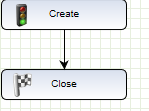
However, actual workflows are not as simple as this. Below you can find our "standard" workflow.
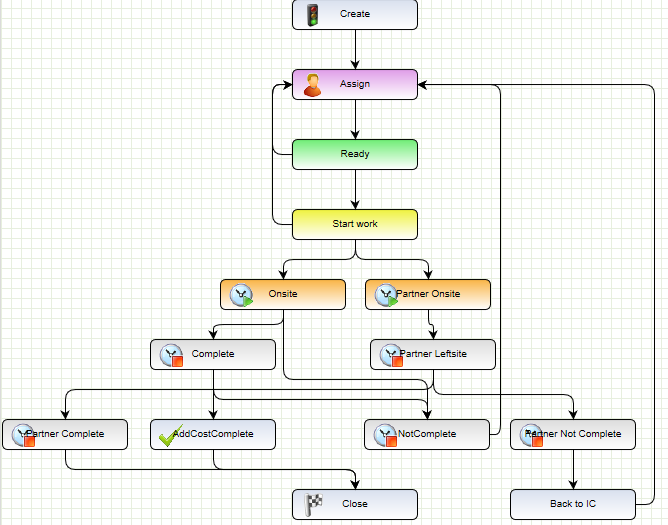
As you can see so is this workflow a bit more complicated. It still contains the create and close steps but there are several other steps in between. Let me briefly go though these steps
- Create, this is the step where the activity is created. You would normally use this step to order any parts that are required for getting the job done.
- Assign, this step is used to assign the activity to a technician or a subcontractor
- Ready, the assigned resource can now start working on the activity. If assigned resource for some reason cannot accept the activity he or she may route it back up to assign step.
- Start work, indicates that assigned resource has started working on the activity.
- Onsite, Partner Onsite, indicates that assigned resources has reached the customer site. Notice that this step is split in two, the reason for this is to differ between subcontractors and InfoCare technician. Subcontractors must take the right path while InfoCare technicians must take the left path.
- Complete,Partner Complete, indicates that job is complete and assigned resource has left the customer. Complete is for InfoCare technicians, while Partner complete is for subcontractors
- Not complete, Partner Not Complete, also indicates that assigned resource has left the customer site, but it also tells the system that the assigned resource was unable to fix the problem and that we have try fixing the problem another time.
- AddCostComplete, is used by InfoCare technicians to indicate they have added all relevant cost and that all parts are handled correctly.
- Back to IC, subcontractors are now allowed to send incomplete activities directly back to the assign step. They will instead send it to this step and an InfoCare employee will check the activity and send it back up to the assign step.
- Close, this is the final step which closes the activity.
Each step can set up rules that determine if step is complete or not. You will not be allowed to leave a step until it is complete. Examples of such rules is that some fields must be filled out. Typically so will all the Complete/Not Complete steps require that solution description is filled out. It is also possible to set up rules on the arrows (transitions) that goes between the steps. We have already seen that it possible to set up security restrictions, but you can also set up other kind of restrictions like you have to fill out all cost before taking a certain transition.